
Whoop Band Not Tracking Steps, Sleep, and Heart Rate [How to Fix?]

The Whoop Band is a popular fitness tracker known for its ability to monitor key health metrics like steps, sleep, and heart rate. However, some users report issues where the device stops tracking these metrics. If you’ve encountered this problem, it can be frustrating, especially when you rely on the data to improve your fitness.
In this guide, we’ll walk you through some troubleshooting steps to resolve these issues and get your Whoop Band back to working perfectly.
Whoop Band Not Tracking Steps, Sleep, and Heart Rate [How to Fix?]
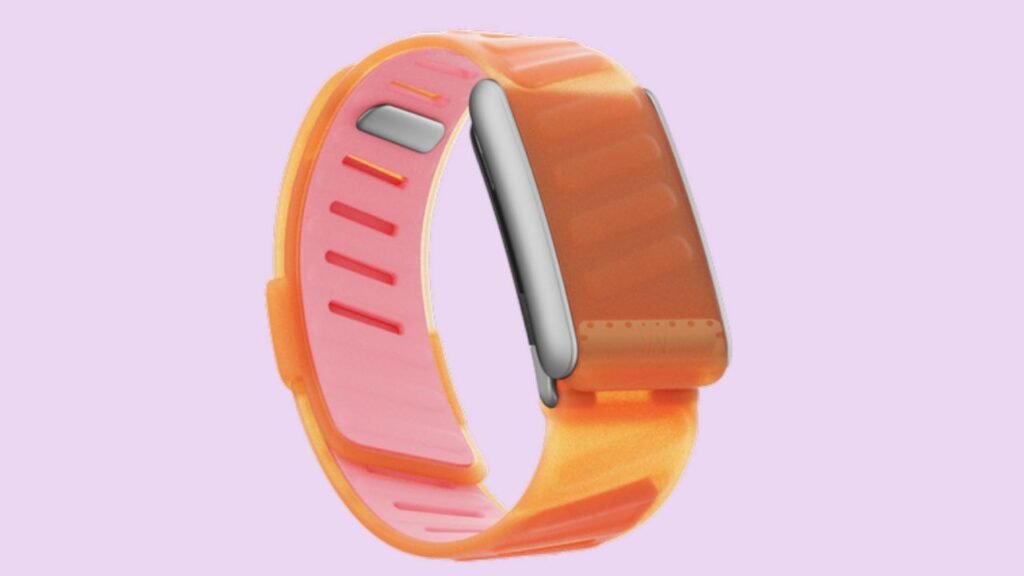
If your Whoop Band is not tracking steps, sleep, or heart rate, this usually means that something is interfering with its sensors or software. These devices use a combination of sensors to measure physical activity, sleep cycles, and heart rate. When these sensors fail to work properly, it could be due to various factors such as software glitches, hardware issues, or incorrect settings.
To resolve this issue, follow the steps below.
Step 1: Restart the Whoop Band
The first and simplest solution is to restart your Whoop Band. Just like with many electronic devices, restarting can help resolve minor glitches that might be affecting its functionality. To restart your device:
- Unpair your Whoop Band from your phone via the Whoop app.
- Press and hold the button on your Whoop device until it turns off.
- Wait a few seconds and then turn the device back on.
- Pair the device again with the app and check if it starts tracking properly.
Step 2: Check the Band’s Fit
A common issue for Whoop Bands not tracking properly is the fit of the band. If it’s too loose or too tight, the sensors may not function correctly. For accurate tracking, make sure the device is snug but not tight on your wrist. It should sit flat against your skin but not restrict circulation.
- Adjust the band so that it’s not too loose or too tight.
- Ensure that the band is in direct contact with your skin.
- Position the band above your wrist bone to improve sensor contact.
Step 3: Update the Firmware
Whoop frequently releases firmware updates that can improve the device’s functionality and fix known issues. If you haven’t updated your device in a while, it might be causing tracking issues. To update your Whoop Band:
- Open the Whoop app on your phone.
- Go to the device settings and look for any available firmware updates.
- Follow the prompts to download and install the update.
- Once the update is complete, check to see if the tracking features are working.
Step 4: Calibrate the Device
Sometimes, the device may need to be recalibrated to ensure it accurately tracks steps, sleep, and heart rate. To calibrate the device:
- Wear your Whoop Band while performing some physical activity for at least 15 minutes.
- Track your activities manually through the app to compare against the device’s readings.
- Ensure that you are wearing the band correctly (as mentioned in Step 2) to ensure calibration is accurate.
Step 5: Check the App Settings
It’s also important to check the settings within the Whoop app to ensure that tracking features are properly enabled. Sometimes, the app settings can be misconfigured, leading to tracking issues. Follow these steps:
- Open the Whoop app on your phone.
- Go to settings and review the tracking features for steps, sleep, and heart rate.
- Ensure all features are enabled, and make any necessary adjustments.
- Restart the app to apply any changes you make.
Step 6: Charge the Device
If your Whoop Band’s battery is low, it may fail to track data properly. Make sure the device is fully charged before using it again. If the battery is extremely low, plug it in and charge it for at least 30 minutes before testing the tracking features.
FAQs
Q: Why isn’t my Whoop Band tracking my heart rate?
A: This could be due to a poor fit, a low battery, or a software issue. Follow the steps above to ensure the band fits well, the battery is charged, and the software is up to date.
Q: How can I improve sleep tracking on my Whoop Band?
A: Make sure the band is worn snugly on your wrist during sleep, and ensure that sleep tracking is enabled in the app settings.
Q: My Whoop Band is still not working. What should I do next?
A: If the above steps don’t resolve the issue, consider reaching out to Whoop customer support. They can help with more advanced troubleshooting or guide you through potential repair or replacement options.
Summary
In this guide, we explored the common reasons why your Whoop Band might not be tracking steps, sleep, or heart rate, and provided a series of troubleshooting steps to fix the issue. Restarting the device, checking the fit, updating the firmware, calibrating, and checking the app settings should help resolve most problems.
If these steps don’t work, customer support is your next best option.
